A single analyst firing an unoptimized AI_COMPLETE call across a million-row table can drain a department's monthly AI budget before lunch. Per-user quotas, now generally available in Snowflake, give you a per-person credit circuit breaker that blocks AI requests within minutes of a spend event. The feature covers Cortex AI Functions, Cortex Agents, Snowflake CoWork, and Snowflake CoCo, with separate tracking available for warehouse compute.
The enforcement pipeline runs in Snowflake-managed infrastructure, so it does not consume credits in your account. That is the detail that matters: you are not paying to be protected from overspend.
If you have been relying on aggregate budgets to catch runaway AI spend, you already know the gap. A team budget tells you the department went over. It does not tell you who did it, or stop them before the damage is done. Per-user quotas close that gap with individual credit limits and automatic blocking, no stored procedures required.
What exactly can you govern, and what stays outside the fence?
Per-user quotas track spend across five domains, but enforcement splits cleanly between AI and compute. Here is the breakdown:
| Domain | Spend Tracking | Block Enforcement | Example |
|---|---|---|---|
| Cortex AI Functions | Yes | Yes | AI_COMPLETE, AI_SUMMARIZE, AI_TRANSLATE |
| Cortex Agents | Yes | Yes | Agent workflows |
| Snowflake CoWork | Yes | Yes | Collaborative business tools |
| Snowflake CoCo | Yes | Yes | Snowsight, CLI, Desktop assistant |
| Warehouse compute | Yes | No | Query execution credits |
That last row is the one to pay attention to. You can track warehouse credits per user for attribution, but you cannot hard-block someone from running queries when they hit a limit. Snowflake's per-user quotas documentation states this plainly: block enforcement does not apply to warehouses.
The design is deliberate. Blocking warehouse access mid-pipeline could corrupt a transaction or leave a stream in a broken state. AI requests are stateless from the user's perspective, so pausing them is safe. If you need to govern warehouse spend, you still depend on warehouse sizing controls and resource monitors, not per-user quotas.
Because AI and compute use different credit structures, limits are set independently. A common pattern: tight daily caps on AI functions where a single bad prompt can burn hundreds of credits, and generous monthly ceilings on warehouse compute for routine query work.
How do you configure a quota with block enforcement?
Quotas are managed through SQL, the Snowsight UI, or Snowflake CoCo. The SQL path gives you the most control and the easiest audit trail. The core flow is three steps: set the per-user limit, enable block enforcement, and add notification thresholds.
First, set the monthly and optional daily credit limits. The monthly cycle is fixed to the UTC calendar month and resets automatically. Custom cycles like weekly are not supported.
-- Monthly limit: 500 credits per user (default cycle)
CALL SET_PER_USER_LIMIT(500);

-- Optional daily limit: 50 credits per user.
-- Pass the cycle argument to switch from monthly to daily.
CALL SET_PER_USER_LIMIT(50, 'DAILY');
Daily and monthly limits are evaluated independently. A user can be blocked for hitting a daily cap while still being well under their monthly ceiling, and the reverse is also true.
Next, enable block enforcement. The GA release added a second boolean argument to control whether blocked users get an email notification. Going forward, end-user notifications are disabled by default, so you must explicitly opt in.
-- Enable block enforcement and send email to blocked users.
-- The first TRUE enables enforcement; the second enables notifications.
CALL SET_BLOCK_ENFORCEMENT_ENABLED(TRUE, TRUE);
Then add notification thresholds so users get warnings before they hit the wall. The GA release added the ability to target thresholds at the monthly or daily limit by passing a fourth argument to ADD_NOTIFICATION_THRESHOLD.
-- Notify at 80 percent of the monthly limit.
-- Fourth argument scopes the threshold to MONTHLY or DAILY.
CALL ADD_NOTIFICATION_THRESHOLD(80, 'EMAIL', 'MONTHLY');
The enforcement pipeline that handles blocking is separate from the measurement task that handles notifications. Block enforcement runs in Snowflake's infrastructure and evaluates breaches within minutes of a spend event. The notification and custom-action measurement task is slower, so do not rely on notifications alone to prevent overspend.
How do you scope quotas to teams without maintaining user lists?
By default, a new quota covers all users in the account, including anyone added later. That is the zero-config path: one quota, one limit, everyone governed. For most teams starting out, that is the right first step.
When you need different limits for different groups, you scope by tag. Tags map your existing organizational structure, cost centers, departments, or teams onto quota scope. If you use SCIM integration with an identity provider like Microsoft Entra ID or Okta, tags can be applied automatically as users are onboarded, so quota scope tracks your org chart without manual maintenance.
When multiple tag keys are used for scoping, an operator defines the matching logic. UNION is the default: a user needs to match at least one tag to be governed. INTERSECTION requires a user to match every specified tag.
You can also keep all users in scope while excluding a subset. The EXCLUDE_USERS option lets you carve out power users or service accounts that should not be subject to the same caps.
| Scoping Mode | Behavior | Use Case |
|---|---|---|
| All users (default) | Covers everyone, auto-includes new users | Simple org-wide cap |
| Tag-based UNION | Includes users matching any tag | Broad team coverage |
| Tag-based INTERSECTION | Includes users matching every tag | Narrow role-based limits |
| EXCLUDE_USERS | All users except a tagged subset | Carve out service accounts |
What changed between preview and GA?
The GA release shipped in the October 2026 release notes brought several concrete improvements over the public preview. If you tested quotas during preview, these are the deltas that matter:
| Capability | Preview | GA |
|---|---|---|
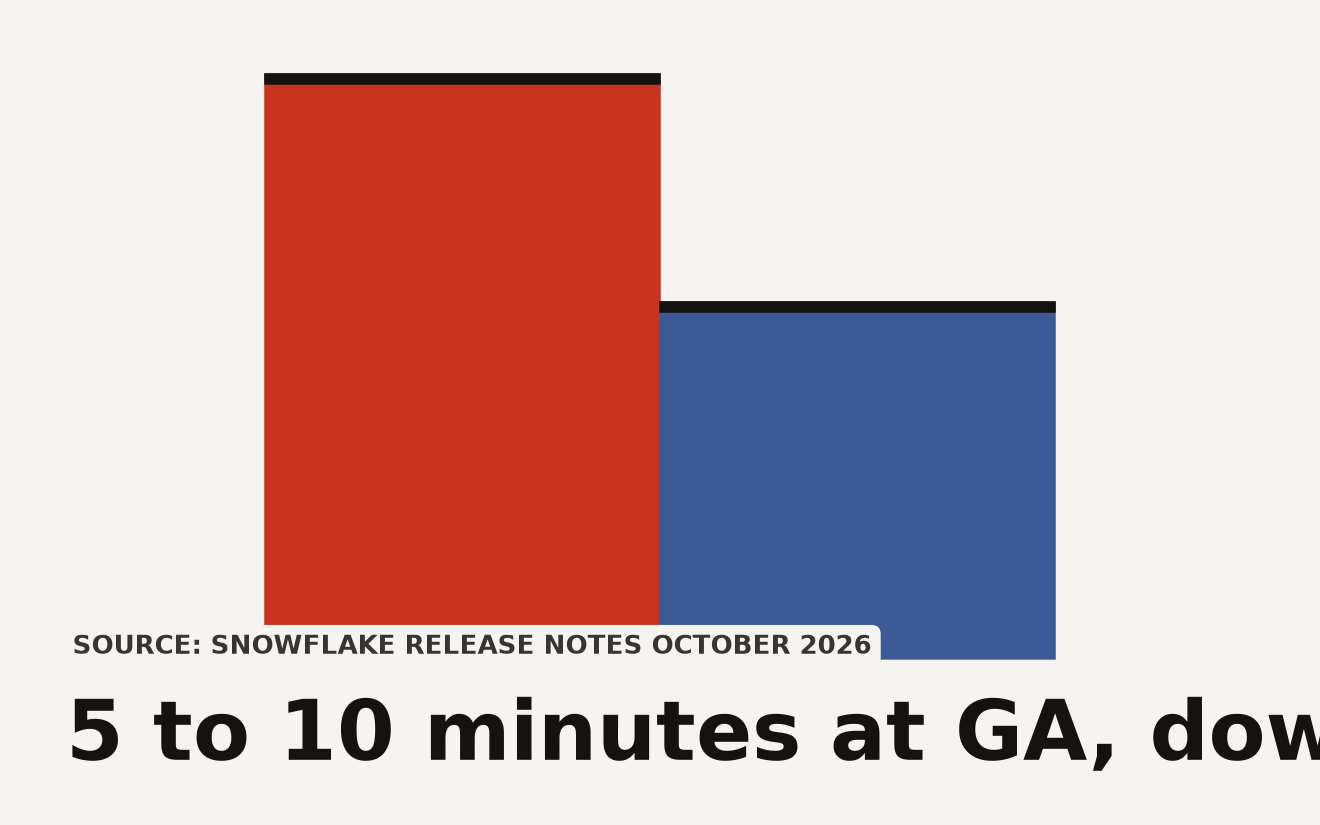
| Enforcement propagation | Up to 15 minutes | 5 to 10 minutes |
| Block email notifications | Not configurable | Admin-controlled via second boolean argument |
| Notification targeting | Monthly only | Monthly or daily via fourth argument |
| Block history view | Not available | ACCOUNT_USAGE.QUOTA_ACCESS_BLOCK_HISTORY |
| Active blocks function | GET_ACTIVE_BLOCKS() | GET_ACTIVE_BLOCKS_V2() |
| Refresh tier setting | SET_REFRESH_TIER() required | Built in, no configuration |
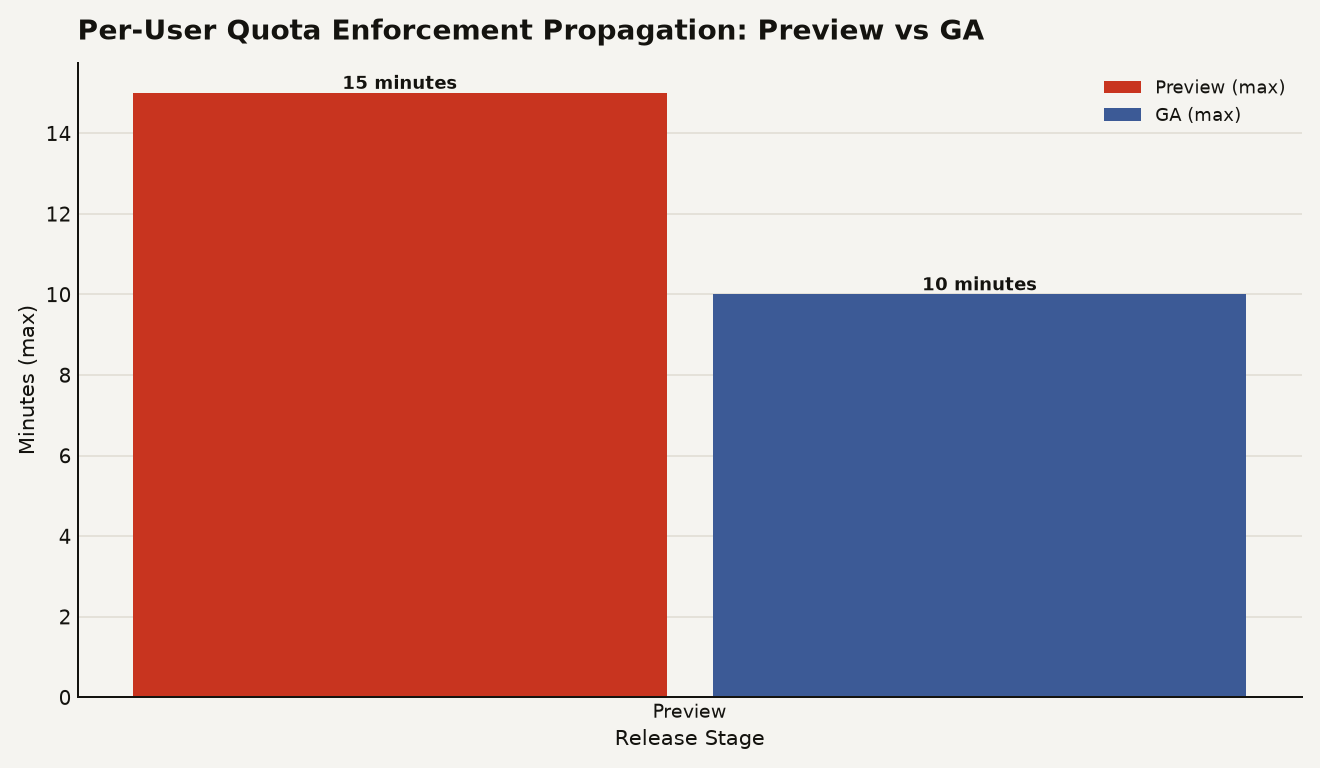
The faster propagation is the headline change. In preview, configuration changes could take up to 15 minutes to take effect. GA cuts that to 5 to 10 minutes. That is still not real-time, so if you raise a user's limit in an emergency, expect a short delay before the new limit is live.
The new ACCOUNT_USAGE view gives you account-wide visibility into every block event across all quotas. Query it to audit who was blocked, when, and why:
SELECT
    user_name,
    quota_name,
    block_reason,
    blocked_at,
    released_at
FROM SNOWFLAKE.ACCOUNT_USAGE.QUOTA_ACCESS_BLOCK_HISTORY
WHERE block_date >= DATEADD('day', -7, CURRENT_DATE())
ORDER BY blocked_at DESC;
For a real-time check on currently blocked users, use the replacement function:
SELECT * FROM TABLE(GET_ACTIVE_BLOCKS_V2());The old GET_ACTIVE_BLOCKS() function is deprecated. GET_PER_USER_USAGE_PREVIEW() and SET_REFRESH_TIER() are gone entirely, since fast evaluation is now built in for all accounts.
When is a per-user quota the wrong tool?
Per-user quotas are a targeted guardrail for AI spend, not a universal cost solution. Here is where they fall short.
Warehouse cost control. You can track warehouse credits per user, but without block enforcement, a quota only gives you attribution data after the fact. If your primary problem is warehouse overspend, adaptive compute and resource monitors are still your tools.
Custom billing cycles. Quotas reset on the UTC calendar month. If your fiscal month starts on the 15th, or you need weekly resets, you are out of luck. The docs are explicit: custom quota cycles such as weekly or custom start dates are not supported. You can work around this with daily limits, but you cannot align the monthly cycle to your fiscal calendar.
Aggregate team budgets. Per-user quotas cap individuals. They do not enforce a team-level ceiling. Ten users with a 500-credit monthly limit can collectively spend 5,000 credits. If you need a department-wide cap, pair per-user quotas with Snowflake Budgets for aggregate tracking. For a deeper look at that layered approach, see our earlier guide to per-user quotas and cost governance.
Real-time prevention. Enforcement happens within minutes, not seconds. A fast-running batch of AI_COMPLETE calls can still accumulate charges before the block takes effect. The system catches overspend quickly, but it is not a hard wall at the credit boundary.
What should you do in the first week after GA?
Start with the AI domains, not warehouse compute. AI functions are where a single user can burn the most credits fastest, and they are where block enforcement actually works.
Set a generous daily limit first. Look at your current AI spend in Snowsight's per-user utilization view, find the 95th percentile of daily per-user consumption, and set the daily cap at roughly 2x that number. This catches true outliers without blocking legitimate work.
Enable block enforcement with email notifications turned on. Users should know when they are blocked and why, so they can self-correct or request a limit increase. The second argument to SET_BLOCK_ENFORCEMENT_ENABLED controls this, and it defaults to off in GA.
If you are running Cortex Agents in production, pair per-user quotas with the Cortex AI Gateway for a layered governance model. The gateway controls which external tools agents can access; the quota controls how much each user can spend. Together they answer the two questions a security reviewer will ask: who can call what, and how much can it cost.
Use custom actions sparingly. The block enforcement is built in and requires no stored procedures. Custom actions via stored procedures are available for advanced scenarios like suspending a warehouse or revoking a role, but the built-in block handles the common case. Start simple.
The shape of individual AI spend control
The block is what makes per-user quotas worth turning on. A quota without enforcement is a reporting view. A quota with automatic, per-user, per-domain blocking that lifts itself at the next cycle boundary is a policy you can actually run. Snowflake built the enforcement pipeline on their own infrastructure, made it free to operate, and made it work within minutes. The gap that remains, the absence of warehouse block enforcement, is a design constraint worth respecting.