On August 27 2026 Google DeepMind released Gemini Omni 1.1 Flash, an update to its multimodal video model that gives developers and hobbyists more control over generative video. Gemini Omni 1.1 Flash is a production-ready update for developers that offers improved control over generative video. The model card describes it as a transformer-based model with native multimodal support for text, vision, video, and audio inputs.
Gemini Omni 1.1 Flash lets you build longer videos, set keyframes, preview cheaply in 360p, and upscale to 4K.
For a beginner, here is the key idea: Omni Flash is an AI model that takes inputs like text, images, audio, and video, and turns them into high-quality video with audio. The big change in version 1.1 is a suite of creative controls that let you act more like a director than a prompt lottery player. You can extend a 10-second clip up to a total of 40 seconds, specify the first and last frames of a shot for smooth transitions, draft at low resolution to save money, and then upscale the final cut to 4K. If you are new to AI video, this release is about making the output more predictable and the iteration loop more affordable.
Five new capabilities in version 1.1
Google DeepMind introduced five new capabilities in the 1.1 update. Each one addresses a specific pain point that existed in earlier AI video tools.
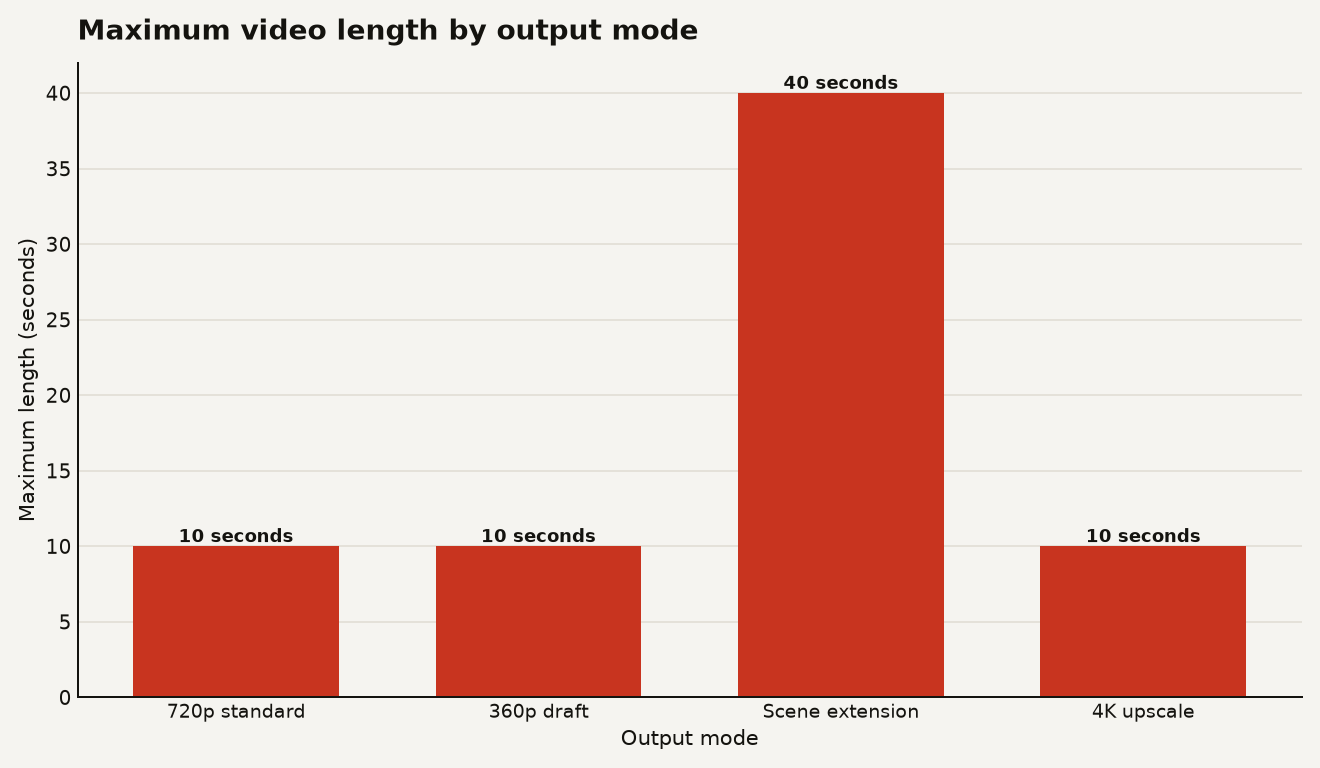
First, scene extension lets you take an existing video and continue generating footage directly from where it left off. The model can now analyze up to 10 seconds of prior context, a leap from previous models that only referenced the final second. You can extend videos in 10-second increments up to a total cumulative length of 40 seconds. This matters because longer videos used to require generating everything in one shot and hoping the model kept the story straight. Now you can build a narrative in pieces.
Second, first and last frame interpolation lets you specify the starting and ending frames of a shot. Omni 1.1 generates continuous video between those two keyframes, making it ideal for complex camera orbits, zoom transitions, or continuous looping clips. Think of it like telling the model "start here, end here, fill in the middle."
Third, 360p draft previews let you generate lightweight previews up to 60 percent faster and at about a third of the cost compared to the standard 720p resolution. This is aimed at rapid prototyping, storyboard iteration, and quick rendering in developer platforms.
Fourth, 4K upscaling lets you take a polished clip and generate high-resolution 1080p or 4K outputs ready for professional production.
Fifth, multimodal video references let you include up to three seconds of reference video when crafting your scene, allowing you to maintain visual context and character consistency.
The chart below shows how the maximum video length you can produce jumps dramatically with scene extension compared to single-shot generation.
Editing video by conversation
Yes, and this is the feature most likely to change how a beginner approaches AI video. The Gemini API documentation calls this "stateful video editing." You generate a video, then refine it with follow-up prompts. Each turn builds on the previous result. The model remembers the video context, applying your changes while preserving elements you did not mention.
The API tracks conversation history using a parameter called previous_interaction_id. You do not need to re-upload the previous video every time you want to make a tweak. You just reference the prior interaction and say something like "change the lighting to golden hour" or "replace the background with a forest." The model applies the edit and returns a new video.
The developers at deepmind.google describe the prompting approach like this: when editing a specific aspect of the video, include the phrase "Keep everything else the same" to maintain visual consistency. That one sentence is the difference between a surgical edit and a model that decides to redesign your entire scene because you asked it to move a chair.
There are limits you should know about. According to the API documentation, editing uploaded videos is not currently available for users in the European Economic Area, Switzerland, or the United Kingdom, though editing videos generated by the model is supported. System instructions, temperature, top_p, stop sequences, and negative prompts are not supported. If you want to exclude something, you put it in the regular prompt, for example "Do not include text overlays." Audio references are not supported in the current API version, and the video references feature, while accepted by the API schema, are not correctly processed by the model at this time.
Preview pricing and limits
The model is in preview status under the code gemini-omni-flash-preview. The technical specifications list a context window of 1,048,576 tokens and an output range of 3 to 10 seconds at 720p and 24 frames per second.
For cost-conscious beginners, the 360p draft mode is the most important number. Google claims it generates previews at about a third of the cost of 720p. If you are building an app that lets users experiment with video ideas before committing to a final render, this is how you keep your API bill from spiraling. Generate three or four variations in 360p, pick the best one, then spend your budget on a single 4K upscale of the winner.
The model is available through Google AI Studio for individual developers and through the Gemini Enterprise Agent Platform for larger teams. Google AI Plus, Pro, and Ultra subscribers can also use scene extension in Google Flow and the Gemini app starting today.
A good entry point for AI video
If you are just starting out with AI video, Gemini Omni 1.1 Flash is a good entry point because the conversational editing model forgivingly handles trial and error. Here is a practical workflow to try.
- Start in Google AI Studio with a simple text-to-video prompt. Add the phrase "in a single continuous shot, no scene cuts" to avoid the model default of creating multiple shots.
- Once you have a base video you like, use follow-up prompts to refine it. Try "make the lighting warmer" or "have the camera slowly zoom in." Always add "Keep everything else the same" to protect the parts you want to preserve.
- Use 360p drafts for your experimentation phase. Save 720p and 4K for the final version you actually want to keep.
- Try the first and last frame feature by uploading two images and asking the model to generate a smooth camera move between them. This is where the model feels less like a slot machine and more like a tool.
- If you are writing code, the Interactions API and the
previous_interaction_idparameter are your main handles for stateful editing. If you are interested in how APIs manage state across turns, our guide to MCP explained for builders covers the general pattern.
Be realistic about what the model cannot do. The model card states that maintaining complete consistency throughout edits, generating scenes with complex motion, and rendering perfectly accurate text remain challenges. If you need a character to wear the same shirt across 40 seconds of edited footage, you will likely need a few attempts. All generated videos include SynthID watermarking, which is invisible to viewers but detectable programmatically, so you cannot pass AI video off as unmodified human footage.
A strong default to learn first
If you are a beginner deciding where to spend your time, Omni 1.1 Flash is a strong default. The conversational editing loop is more intuitive than trying to get a perfect result from a single prompt, and the 360p draft mode means mistakes do not cost much. Adobe has integrated Gemini Omni Flash into Firefly, and Runway and Figma Weave have also built it into their creative tools, which means the skills you learn here transfer to platforms you might already use.
The honest caveat is that AI video is still a medium of happy accidents. The model can follow simple and complex instructions and simulate real-world physics, but the results vary. Treat the first generation as a rough sketch and the conversational edits as the real craft. The builders who get the most out of Omni 1.1 will be the ones who stop trying to write the perfect prompt and start treating the model like a collaborator that takes direction one step at a time.